Connect your firm’s mail
Connect your firm's mail to Tempello
To allow Tempello to locate billable time in your firm's emails, follow the procedure below to setup a Bcc of your firm's correspondence to your Tempello email account dracup@users.tempello.com. Select instructions below based on the email provider used by your firm.
Set up a routing in Google Workspace Gmail which automatically adds your Tempello email address dracup@users.tempello.com for all your incoming and outgoing emails. Important: the Tempello email address is added as Bcc (blind carbon copy) and is not visible to any recipient.
You need Administrator privileges in Google Workspace to complete this setup.
1. Login Google Administrator Console
2. From the left menu, select then then
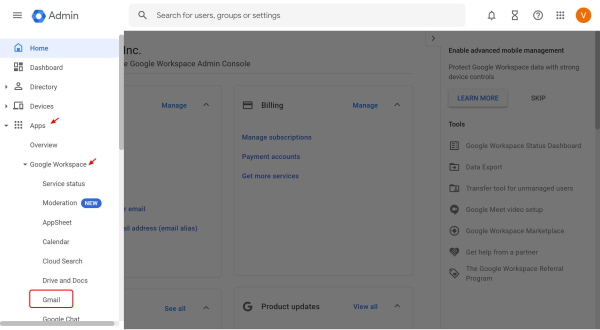
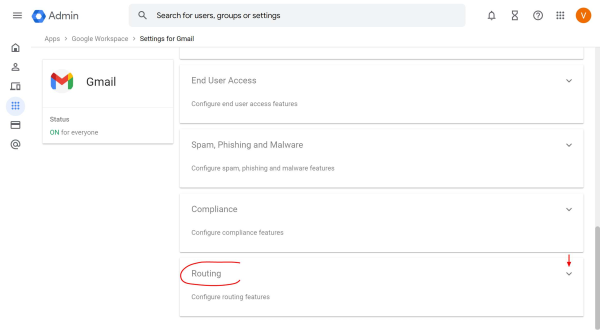
3. Scroll down to find panel and click to expand it
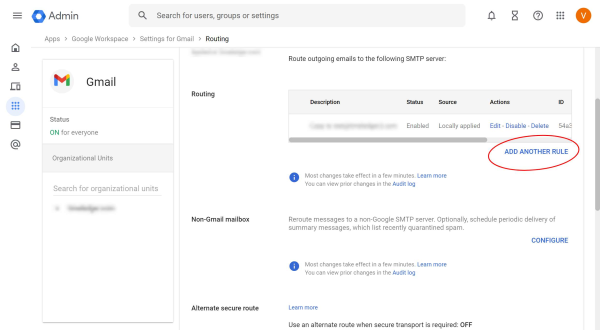
4. Click under list of routings
5. Enter a routing name, for example 'Tempello', and select all options in the Make sure the option is selected under 'For the above types of messages, do the following'.
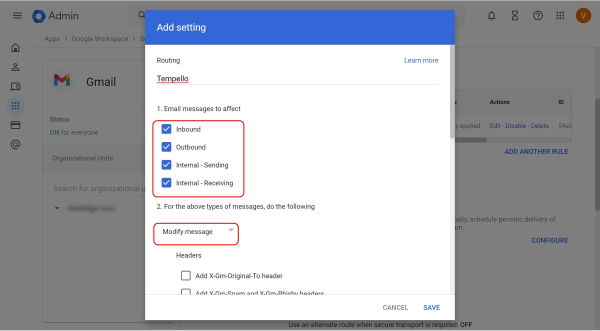
6. Scroll down to find and check . Click
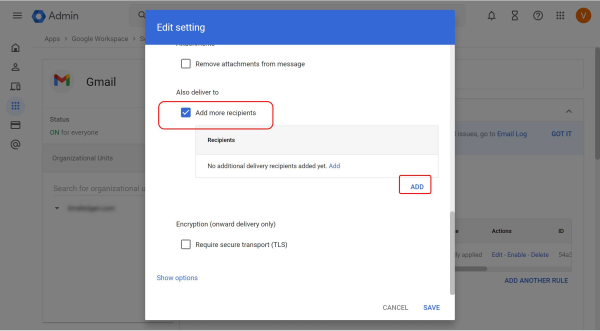
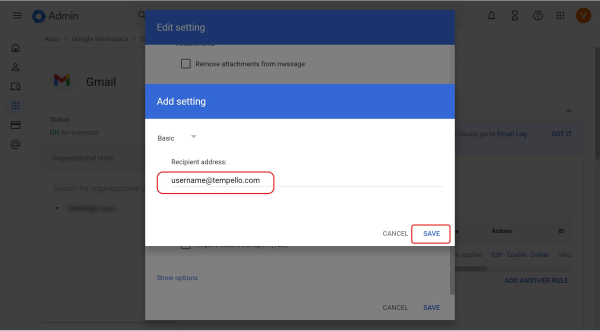
7. Enter your Tempello email address dracup@users.tempello.com and click  under list of routings
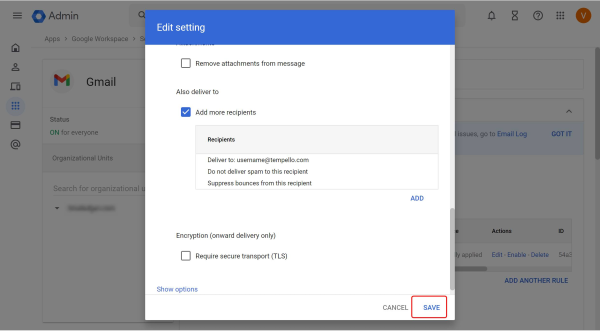
8. Click . In a few seconds the routing will be added to the list.
When the mail flow rule is set up, go to the Dashboard and see how your correspondence is processed by Tempello and how time entries are created in Clio (An email is usually processed within 3 minutes of sending or receiving it).
Set up a mailflow transport rule in Microsoft 365 which automatically adds your Tempello email address clio@users.tempello.ai to the Bcc box for all your incoming and outgoing emails.
If you purchased Microsoft 365 from GoDaddy, please see the instructions on how to access Exchange Admin Center.
1. Login
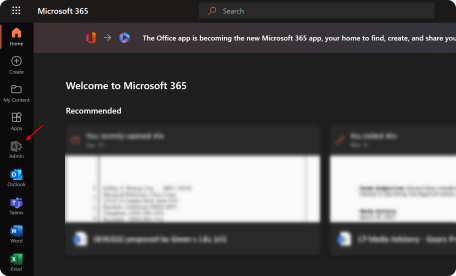
2. In the left side menu select then
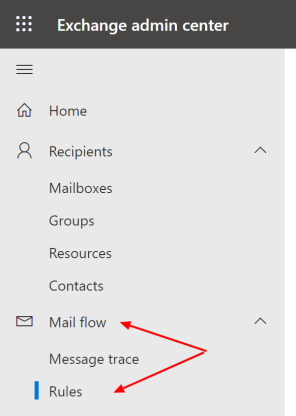
3. In the right side panel click then
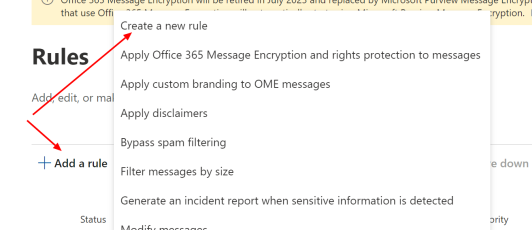
4. In the panel:
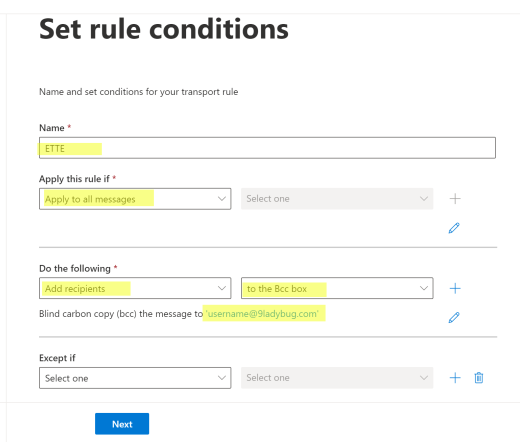
- specify any rule , for example "Tempello"
- for select "Apply to all messages" (the option is located at bottom)
- for select "Add recipients", then choose "to the Bcc box" from the right box
- in the popup enter clio@users.tempello.ai popup enter dracup@users.tempello.com
- click then then
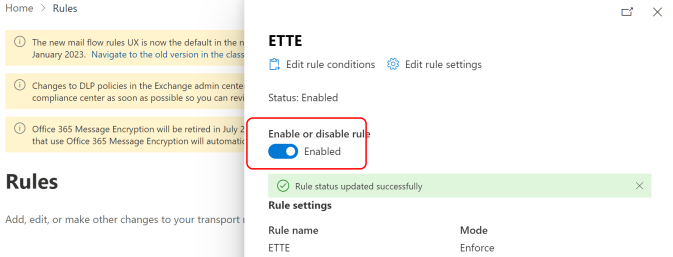
5. Make sure the newly created rule is enabled. If not, click on the rule and turn its status to Enabled.